
shell script pip3 install image-pattern
Pattern as follows:from image_pattern import Pattern
class Avatar(Pattern):
passEach image pattern consists of two components:
- canvas - the image canvas settings, such as size;
- layers - layers that contain image content;
from image_pattern import (
    Pattern,
    Canvas,
)


class Avatar(Pattern):
    canvas = Canvas(size=(200, 200))
In this case we created an empty pattern for 200x200 image.
Now, we can generate an image from it with the code:
avatar_pattern = Avatar()
image = avatar_pattern.render()
image.save('avatar.jpg', 'JPEG')
And we get the next image:

from __future__ import annotations
from typing import List
from image_pattern import (
    Pattern,
    Canvas,
    Layer,
    Rectangle,
    Point,
)


class Avatar(Pattern):
    canvas = Canvas(
        size=(200, 200),
    )
    layers: List[Layer] = [
        Layer(
            Rectangle(
                size=(100, 200),
                point=Point(x=0, y=0),
                background_color=(51, 204, 255),
            ),
            Rectangle(
                size=(100, 200),
                point=Point(x=100, y=0),
                background_color=(255, 51, 153),
            ),
        ),
    ]


avatar_pattern = Avatar()
image = avatar_pattern.render()
image.save('avatar.jpg', 'JPEG')
Let's run the script and get the image:

What's going on here:
- We added a list of layers that contains one layer.
- This layer contains two rectangles;
- The
sizeproperty specifies the size of the rectangle in pixels; - The
pointproperty specifies a point on the canvas indicating the upper left corner of the element; - The
background_colorproperty specifies the color of the rectangle in the RGB system.
More information about the elements and their properties can be found in API.
...
        Layer(
            Rectangle(
                size=(100, 200),
                point=Point(x=0, y=0),
                background_color=(51, 204, 255),
            ),
            Rectangle(
                size=(100, 200),
                point=Point(x=50, y=0),
                background_color=(255, 51, 153),
            ),
        ),
...
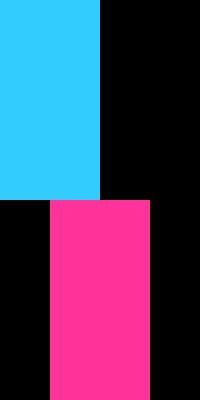
we'll generate the next image:

...
class Avatar(Pattern):
    canvas = Canvas(
        size=(200, 400),
    )
...
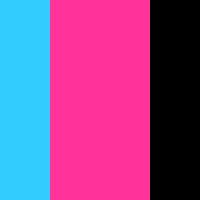
But if we return the height of 200 pixels and place the rectangles in different layers:
...
    layers: List[Layer] = [
        Layer(
            Rectangle(
                size=(100, 200),
                point=Point(x=0, y=0),
                background_color=(51, 204, 255),
            ),
        ),
        Layer(
            Rectangle(
                size=(100, 200),
                point=Point(x=50, y=0),
                background_color=(255, 51, 153),
            ),
        ),
    ]
...
then we can generate the next image:
...
        Layer(
            Text(
                text='Image Pattern',
                font=FONT_PATH,
                font_color=(255, 255, 255),
                font_size=42,
                point=Point(x=0, y=0),
                margin=Position(
                    top=20,
                    left=20,
                    right=20,
                ),
            )
        ),
...
Let's put the first letters of words in the center of the image:
...
from image_pattern import (
    ...
    HorizontalAlignment,
    VerticalAlignment,
)
...
        Layer(
            Text(
                text='IP',
                font=FONT_PATH,
                font_color=(255, 255, 255),
                font_size=102,
                point=Point(x=100, y=100),
                margin=Position(
                    left=20,
                    right=20,
                ),
                horizontal_alignment=HorizontalAlignment.CENTER,
                vertical_alignment=VerticalAlignment.CENTER,
            ),
        ),
...
We got the image:

I is less than the width of the letter P, the text looks as if shifted.To get rid of this effect, we will try to place each letter in the center of its rectangle as follows.
...
            Text(
                text='I',
                font=FONT_PATH,
                font_color=(255, 255, 255),
                font_size=102,
                point=Point(x=50, y=100),
                margin=Position(
                    left=20,
                    right=20,
                ),
                horizontal_alignment=HorizontalAlignment.CENTER,
                vertical_alignment=VerticalAlignment.CENTER,
            ),
            Text(
                text='P',
                font=FONT_PATH,
                font_color=(255, 255, 255),
                font_size=102,
                point=Point(x=150, y=100),
                margin=Position(
                    left=20,
                    right=20,
                ),
                horizontal_alignment=HorizontalAlignment.CENTER,
                vertical_alignment=VerticalAlignment.CENTER,
            ),
...
Having executed the script, we will get the following image:
Success!
...
from image_pattern import (
    ...
    Context,
)
...
class AvatarContext(Context):
    first_char: str
    second_char: str
...
            Text(
                text=AvatarContext.var('first_char'),
                ...
            ),
            Text(
                text=AvatarContext.var('second_char'),
                ...
            ),
...
context = AvatarContext(
    first_char='I',
    second_char='P',
)
avatar_pattern = Avatar(context=context)
..../examples/avatar.py.All classes are inherited from pydantic.BaseModel to validate passed
arguments, which imposes certain specifics when working with api.
- canvas - attribute of the
Canvastype. Sets the properties of the canvas. - layers - attribute of the
List[Layer]type. Sets a list of layers.
- context - an argument of the
Contexttype that will be passed to the elements to form their properties.
- render - returns the generated image object of the
PIL.Imagetype; - render_to_blob(**save_kwargs) - returns the generated image object of the
io.BytesIOtype. Accepts the parameters passed to the methodPIL.Image.save(),such asqualityand etc. You cannot pass the image format, as it is saved inJPEG. Made simply for easy use of the generation results.
The object describing the properties of the canvas.
- size - is the size of the canvas. It can be set as
Tuple[int, int]as well as context variable.
- *elements - a list of items
RecatngleorTextto add to the image.
pydantic.BaseModel, so it requires a description of the types to perform the validation.- var(attribute_name: str) - indicates which context variable to use for this attribute.
An object that adds rectangles to an image.
- point -
Pointobject, which points to the upper left corner of the element in the image; - horizontal_alignment - one of the values of the enumeration
HorizontalAlignment, to specify the horizontal alignment. Can be set from a context variable. By default -HorizontalAlignment.LEFT; - vertical_alignment - one of the values of the enumeration
VerticalAlignment, to specify the vertical alignment. Can be set from a context variable. By default -VerticalAlignment.TOP; - size - element size. It can be set as
Tuple[int, int]as well as context variable; - brightness - element brightness. Optional argument. It ca be set as
floatfrom 0 to 1 or context variable; - background_image - sets the background image for the element.
Optional argument. Must set the path to the image. Can be set from a
context variable. The background image is scaled to the same extent
as set in css -
background-size: cover;. - background_color - sets the color of background of the element.
Optional argument if set
background_image. Used when generating an element only when the propertybackground_imageis not set. It can be set as RGBTuple[int, int, int]or RGBATuple[int, int, int]. Can be set from a context variable. - alpha - alpha assignment. Optional argument. It can be set as
intfrom 0 to 255. Can be set from a context variable.
An object that adds text to the image.
- point -
Pointobject, which points to the upper left corner of the element in the image; - horizontal_alignment - one of the values of the enumeration
HorizontalAlignment, to specify the horizontal alignment. Can be set from a context variable. By default -HorizontalAlignment.LEFT; - vertical_alignment - one of the values of the enumeration
VerticalAlignment, to specify the vertical alignment. Can be set from a context variable. By default -VerticalAlignment.TOP; - font - specifies the font to be used for text. Presented as a path to OpenType or TrueType font. Can be set from a context variable.
- font_size - sets the font size. It can be represented by a
intor context variable. By default -12; - font_color - sets the font color as RGB
Tuple[int, int, int]. Can be set from context variable. By default -(0, 0, 0); - text - specifies, directly, the text to be added to the image. It can
be set as
stror context variable; - line_height - sets the height of the line. Optional argument. It can
be set as
intor context variable; - margin - sets the indents for the text relative to the canvas.
Optional argument. It can be set as
Positionor context variable;
Describes the point on the canvas.
- x - x coordinate as
int; - y - y coordinate as
int.
Describes the position of the element relative to the sides of the canvas. For example, indents for text.
- top -
intindented from the top edge of the canvas; - right -
intindented from the right edge of the canvas; - bottom -
intindented from the bottom edge of the canvas; - left -
intindented from the left edge of the canvas.
Provides horizontal alignment options.
- HorizontalAlignment.LEFT - left edge alignment;
- HorizontalAlignment.CENTER - center alignment;
- HorizontalAlignment.RIGHT - right edge alignment.
Provides vertical alignment options.
- VerticalAlignment.TOP - top edge alignment;
- VerticalAlignment.CENTER - center alignment;
- VerticalAlignment.BOTTOM - bottom edge alignment.
image_pattern.cotrib.ImagePatternField field inherited from django.db.models.ImageField.blank = True relative to ImageField and a number of new arguments:- pattern - image pattern;
- context -
callbackobject method that returns the context for generating the image. Optional argument. if the method is not specified, the object methodget_image_pattern_contextwill be used; - should_be_created -
callbackobject method, indicating the need to generate an image. Optional argument. The method is not specified, the object methodimage_pattern_should_be_createdwill be used.
should_be_created returns True.ImagePatternFieldsee the example project in ./django_example.- [ ] Make it possible to change the image format.
- [ ] Do something with the autocomplete to create objects (Since all objects are inherited from pydantic.BaseModel, they do not contain meta information for the autocomplete. Perhaps should manually write all the constructors.).
- [ ] Think about using context. Using Context.var() with a string name does not seem to be the best way.
- [ ] Make it possible to shift within the layer not only to down, but also to the right.
- [ ] Setting the center of the background image.
- [ ] Test refactoring and bringing coverage to 100%.
- [ ] Setup linter.
- [ ] Check with mypy.
- [ ] Setup github actions.