An Experimental WordPress AI block composer. Describe the content you want and Kratt inserts the right blocks, without requiring you to know block names or navigate the inserter.
Read more: Experimenting with AI-Assisted Block Composition in WordPress 7.0
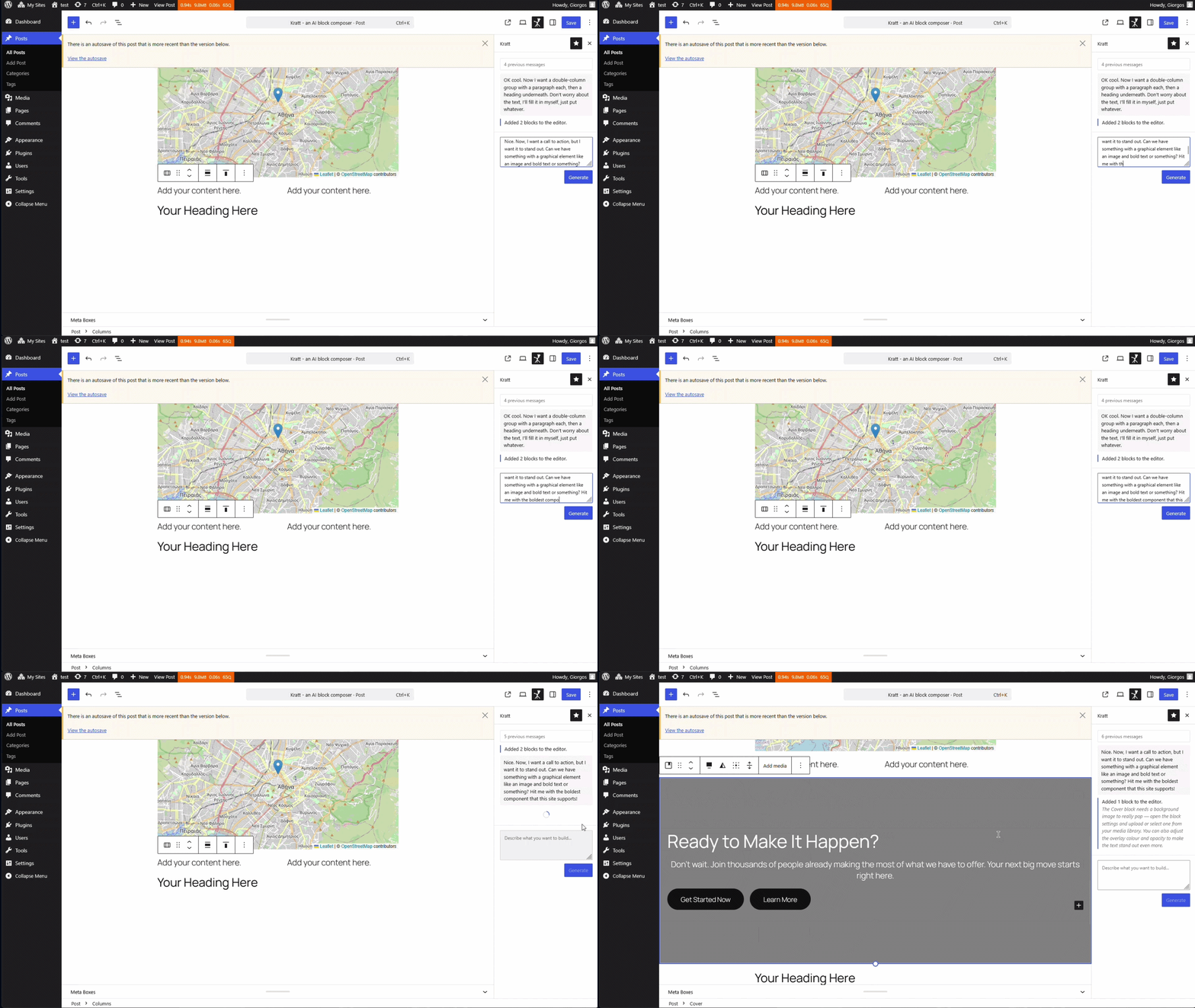
Click the image to watch the full demo on YouTube.
Note
Kratt is a household spirit from Estonian and Finnish mythology. According to legend, a Kratt is assembled from whatever scraps are at hand: straw, sticks, old tools. It is brought to life by making a pact with the devil. Once animated, it becomes an obedient servant that fetches things, carries loads, and does work on your behalf, tirelessly and unseen.
Kratt adds a sidebar panel to the Block Editor. Type a plain-language description of what you want to build, and Kratt sends it to the AI along with a catalog of every block available on your site. The AI returns a structured block specification; Kratt turns that into real blocks and inserts them at the cursor position.
The catalog is built from the WordPress block registry at activation time. It tells the AI exactly which blocks exist on your site, what they do, and which attributes are safe to populate. Core blocks use hand-curated descriptions for accuracy; theme and plugin blocks are detected automatically from the registry.
- Natural language composition — describe layouts, sections, or single blocks in plain English
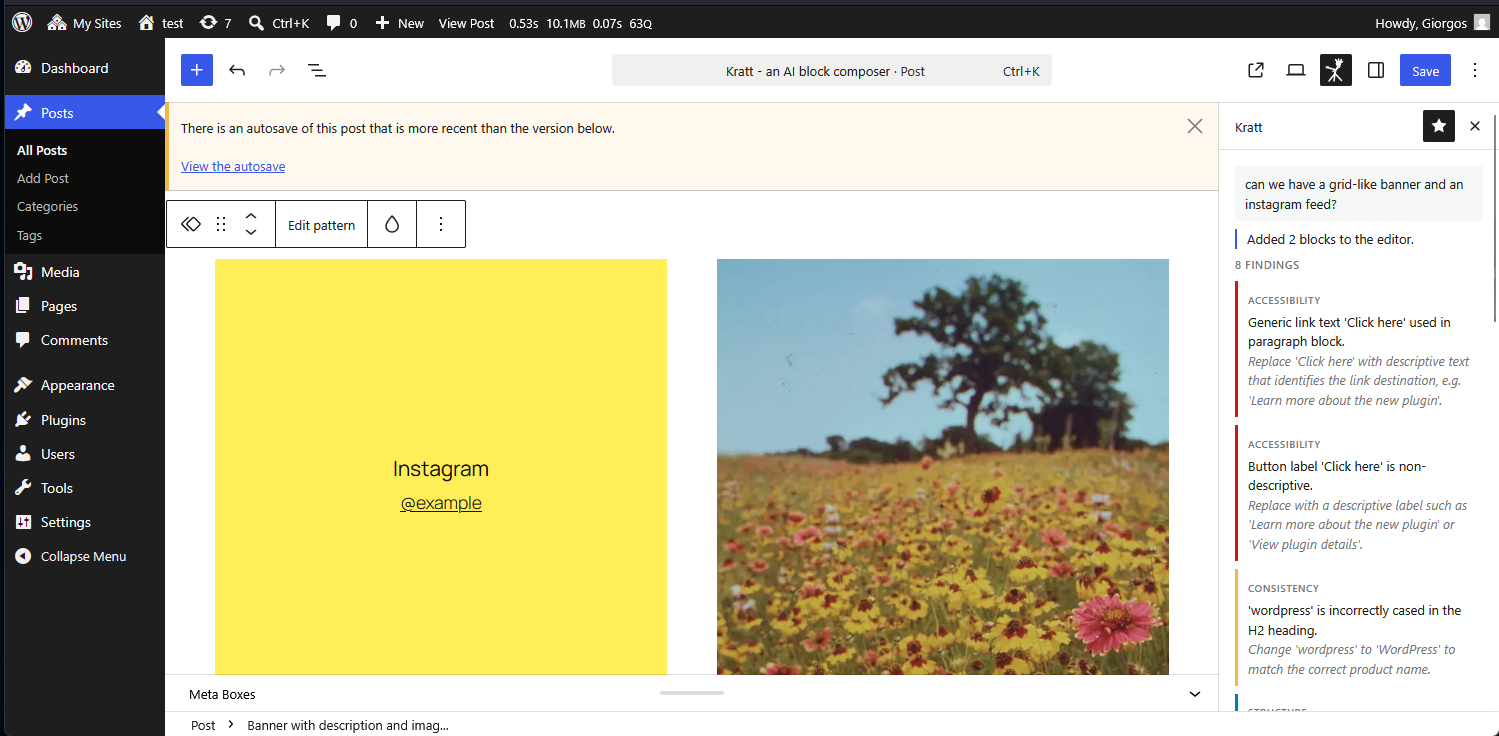
- Pattern-aware — prefers registered block patterns when they match the request; falls back to assembling from individual blocks
- Content review — analyses existing editor content and returns structured findings for structure, accessibility, and consistency
- Aware of all site blocks — catalog is built from the live block registry, including theme and plugin blocks
- Cursor-aware insertion — blocks are inserted after the currently selected block, or at the end of the document
- Nested block support — containers (columns, groups, covers) are assembled with their inner blocks intact
- Context-aware prompting — the current editor content is sent as read-only context, so the AI knows what's already there
- Allowed blocks respected — if the editor or post type restricts which blocks can be used, the AI only picks from that subset
- Collapsible message history — recent messages are always visible; older ones are grouped under a toggle
- Test mode — a
KRATT_TEST_MODEconstant lets you develop and style without burning API tokens
- WordPress 7.0 or later
- PHP 8.1 or later
- An AI provider plugin (see Installation)
Download the latest release zip from the Releases page, upload it to wp-content/plugins/, and activate it via Plugins → Installed Plugins.
Kratt uses the WP AI Client, which is part of WordPress 7.0. To provide an actual AI model, you need a provider plugin. Available options:
Install and activate one of these.
Each provider plugin expects your API key as a PHP constant in wp-config.php. For Anthropic:
define( 'ANTHROPIC_API_KEY', 'sk-ant-...' );The provider plugin will pick this up automatically. No admin UI is needed.
After activation, open any post or page in the Block Editor. You should see a Kratt panel in the sidebar (the robot icon in the top toolbar). If you see an error notice instead, check that a provider plugin is active and the API key is set.
Open a post or page in the Block Editor and click the Kratt icon in the top toolbar to open the sidebar.
Type what you want to build in the text area and press Enter (or click Generate). Examples:
- "Add a hero section with a heading and a call-to-action button"
- "Create an FAQ with three questions about shipping"
- "Add a two-column layout with an image on the left and text on the right"
- "Insert the OpenStreetMap block"
Kratt inserts the generated blocks after the currently selected block. If nothing is selected, blocks are added at the end of the document.
Shift+Enter adds a new line in the text area without submitting.
When the text area is empty, the Review button becomes available. Click it to ask Kratt to analyse the current editor content and return a list of findings grouped into three categories:
- Structure — heading hierarchy, logical flow, appropriate block usage
- Accessibility — missing alt text, non-descriptive link or button labels, heading level issues
- Consistency — tone, terminology, and formatting patterns across the content
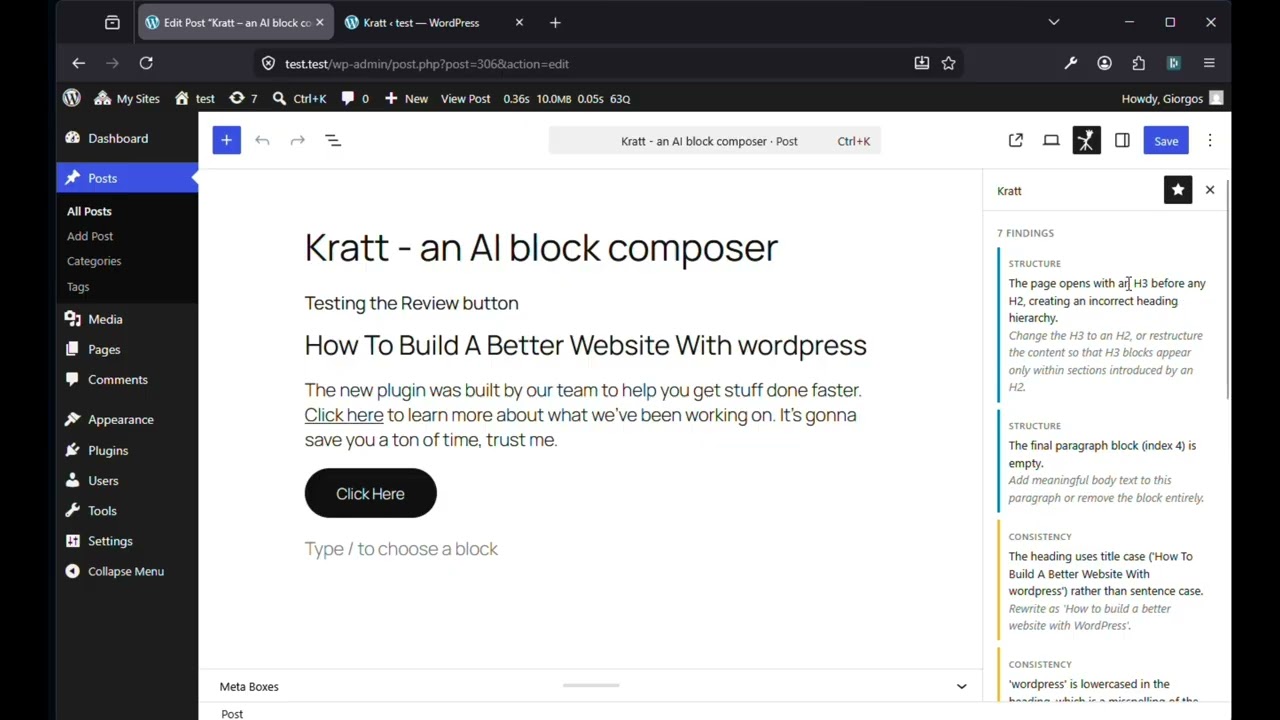
Click the image to watch the patterns and review demo on YouTube.
Each finding includes a short description of the issue and a concrete suggestion for fixing it. An empty findings list means no issues were detected.
Go to Settings → Kratt to see the block catalog and manage it.
The catalog is the list of blocks Kratt knows about. It is built from the live WordPress block registry and stored in the database. The settings page shows:
- Custom blocks — blocks registered by themes or plugins, listed first
- Core blocks — all standard WordPress blocks, collapsed by default to keep the page manageable
Each entry shows the block's title, slug (e.g. core/paragraph), and description.
The catalog is built automatically when Kratt is activated, and again whenever a plugin or theme is activated or switched. You can also trigger a manual rescan at any time by clicking Rescan Blocks on the settings page. This is useful after installing a new block plugin without deactivating and reactivating it.
These PHP constants can be defined in wp-config.php to configure Kratt's behaviour.
Not a Kratt constant; it belongs to the AI provider plugin. It tells the provider which API key to use.
define( 'ANTHROPIC_API_KEY', 'sk-ant-...' );When set to true, Kratt skips the AI call entirely and returns a dummy response instead. Useful during theme development or UI work when you do not want to spend API credits.
define( 'KRATT_TEST_MODE', true );The dummy response always inserts a heading and a paragraph so you can verify that the sidebar, styling, and block insertion work correctly.
Does Kratt store my content or send it to a third party?
Kratt sends your prompt and a summary of the current editor content to the AI provider you have configured (e.g. Anthropic). What the provider does with that data is governed by their terms of service. Kratt itself stores nothing beyond the block catalog in your WordPress database.
Can it create any block, or only the ones it knows about?
Only blocks in the catalog. The AI is instructed never to invent block names, and if it cannot fulfil a request with the available blocks it returns an error with a suggestion of what to try instead.
Why does my custom block appear in the catalog but produce an empty result?
The AI fills in attributes it can generate with confidence: heading text, paragraph content, button labels. For everything else (media IDs, coordinate pairs, complex objects), it intentionally leaves attributes empty and lets WordPress use the block's registered defaults. An empty but valid block is always preferable to a block with invented attribute values that fail validation.
The catalog is out of date after I installed a new plugin. What do I do?
Click Rescan Blocks on the Settings → Kratt page. The catalog is also rebuilt automatically when any plugin or theme is activated.
Can I restrict which blocks the AI can use?
Not directly via Kratt. However, if your post type or editor setup restricts allowedBlockTypes, Kratt reads that setting and passes only the permitted blocks to the AI. Blocks outside that list will not be suggested.
Where do I set the AI model or temperature?
Those settings are controlled by the provider plugin, not Kratt. Kratt simply calls wp_ai_client_prompt() and lets the provider handle model selection and generation parameters.
apply_filters( 'kratt_system_instructions', string $instructions, array $context )Filters the additional instructions appended to the Kratt AI system prompt on every compose request. The $instructions parameter starts as the value saved in Settings → Kratt; the filter lets you override or extend it per post type, post ID, or any other condition. $context contains post_id (int, 0 for unsaved posts) and post_type (string).
add_filter(
    'kratt_system_instructions',
    function ( string $instructions, array $context ): string {
        if ( 'product' === $context['post_type'] ) {
            return $instructions . ' Always include a core/button with a "Buy now" label.';
        }
        return $instructions;
    },
    10,
    2
);apply_filters( 'kratt_dummy_response', array $blocks, string $prompt )Only fires when KRATT_TEST_MODE is true. Lets you override the blocks returned by the dummy response without editing the plugin — useful for testing how a specific block and its transforms behave end-to-end.
add_filter( 'kratt_dummy_response', function( array $blocks, string $prompt ): array {
    return [
        [
            'name'       => 'ootb/openstreetmap',
            'attributes' => [ 'markers' => [ [ 'lat' => 38.9519, 'lng' => 20.7322 ] ] ],
        ],
    ];
}, 10, 2 );apply_filters( 'kratt_dummy_review_response', array $findings, string $editor_content )Only fires when KRATT_TEST_MODE is true. Lets you override the findings returned by the dummy review response without editing the plugin — useful for testing how specific finding types are rendered in the sidebar.
add_filter( 'kratt_dummy_review_response', function( array $findings, string $editor_content ): array {
    return [
        [
            'type'       => 'accessibility',
            'message'    => 'Image is missing alt text.',
            'block_index' => 0,
            'suggestion' => 'Add descriptive alt text for screen readers.',
        ],
    ];
}, 10, 2 );// Parameters: array $attributes, string $block_name
// Returns: array $attributes (modified)
apply_filters( 'kratt_block_attribute_transform', $attributes, $block_name );Runs on every block in the AI response before it reaches the editor. Use this to convert AI-output attributes into the format the block actually expects — for example, mapping virtual ability params to a different attribute shape, or setting companion attributes that must change together.
add_filter(
    'kratt_block_attribute_transform',
    function ( array $attributes, string $block_name ): array {
        if ( 'my-plugin/my-block' !== $block_name ) {
            return $attributes;
        }
        // transform attributes here
        return $attributes;
    },
    10,
    2
);
Kratt ships a built-in handler for ootb/openstreetmap. See CONTRIBUTING.md for details on when and how to write your own.
apply_filters( 'kratt_editor_content_max_chars', int $max_chars )Filters the maximum number of characters of editor_content forwarded to the AI on both /compose and /review requests. The default is 8000. Content exceeding this limit is truncated server-side and an ellipsis is appended.
add_filter( 'kratt_editor_content_max_chars', function ( int $max ): int {
    return 15000;
} );apply_filters( 'kratt_block_snippet_max_chars', int $max_chars )Filters the maximum number of characters extracted per block when building the numbered editor summary sent to the AI. The default is 300. Increase this if you need the AI to see more content per block; the server-side kratt_editor_content_max_chars cap still applies to the assembled summary as a whole.
add_filter( 'kratt_block_snippet_max_chars', function ( int $max ): int {
    return 500;
} );apply_filters( 'kratt_pattern_catalog_max', int $max_patterns )Filters the maximum number of registered block patterns included in the AI prompt. The default is 100. Reduce this if you have a large pattern library and want to limit token usage; set it to 0 to disable pattern-aware composition entirely.
add_filter( 'kratt_pattern_catalog_max', function ( int $max ): int {
    return 20;
} );Kratt exposes three REST endpoints, all requiring authentication (edit_posts capability).
Generates blocks from a natural language prompt.
Request body:
| Field | Type | Required | Description |
|---|---|---|---|
prompt |
string | yes | The user's natural language instruction |
editor_content |
string | no | Numbered plain-text block summary: one line per block ([index] block/name: "text snippet"), used as read-only context |
allowed_blocks |
string[] | no | List of block slugs permitted in the editor |
Success response (blocks):
{
  "blocks": [
    { "name": "core/heading", "attributes": { "level": 2, "content": "Hello" } },
    { "name": "core/paragraph", "attributes": { "content": "World." } }
  ]
}
Success response (pattern): When the AI selects a registered block pattern, the serialized pattern markup is returned instead of a blocks array. The sidebar parses and inserts this directly.
{
  "pattern_content": "<!-- wp:paragraph --><p>Hello</p><!-- /wp:paragraph -->"
}
Error response:
{
  "error": "No suitable block exists for that request.",
  "suggestion": "Try describing the content differently, or use a core/group to assemble it manually."
}Analyses the current editor content and returns structured feedback.
Request body:
| Field | Type | Required | Description |
|---|---|---|---|
editor_content |
string | no | Serialized block markup for the current post content (HTML with WordPress block comments, as produced by serialize( blocks ) from @wordpress/blocks). block_index values in the response refer to the zero-based position of top-level blocks in this markup. |
focus |
string | no | Optional natural language focus for the review (e.g. "Check accessibility") |
post_id |
integer | no | Current post ID (0 for unsaved posts) |
post_type |
string | no | Current post type slug |
Success response:
{
  "findings": [
    {
      "type": "accessibility",
      "message": "Image block is missing alt text.",
      "block_index": 2,
      "suggestion": "Add descriptive alt text that conveys the image meaning."
    }
  ]
}
type is one of structure, accessibility, or consistency. block_index is omitted when the finding applies to the content as a whole. An empty findings array means no issues were found.
Known limitation: editor_content is capped at 8000 characters before being forwarded to the AI. Posts with very long content will be reviewed only partially, with no indication in the response that anything was truncated. This will be addressed in a future release.
Returns the stored block catalog as JSON.
Triggers a rescan of the block registry and saves the result. Returns a message with the new block count.
Kratt both registers and consumes the WordPress Abilities API.
Kratt registers a kratt/insert-block ability on the wp_abilities_api_init hook. This makes Kratt's block insertion capability discoverable by other plugins and by future WordPress tooling that queries what AI-related actions a site supports.
When Kratt scans the block catalog, it also reads every registered ability and looks for ones that declare a block_name in their meta. When found, Kratt uses the ability's input_schema to add attribute documentation to that block's catalog entry.
This matters because the AI can only reliably populate attributes it has clear documentation for. Without ability metadata, non-text attributes (coordinates, zoom levels, provider enums, etc.) are hidden from the AI and left at their block defaults. With it, the AI can set those attributes correctly from the user's natural language description.
For example, the Out of the Box OpenStreetMap plugin registers an ability for its block. When Kratt scans the catalog on a site that has the plugin installed, the map block gains documented attributes:
zoom(integer): Initial zoom level (2-18).bounds(array): Map centre as [[lat, lng]], e.g. [[37.97, 23.72]] for Athens.provider(openstreetmap|mapbox): Tile provider.mapType(marker|polygon|polyline): Map type.- and more.
The AI can then insert a map pointing at a specific location when asked, rather than inserting an empty block with no centre set.
For plugin authors: to make your block's attributes AI-readable, simply register a WordPress ability using standard practices with a namespace that matches your block name. No special metadata is required — Kratt resolves the association automatically. See CONTRIBUTING.md for details.
Kratt is a household spirit from Estonian and Finnish mythology, which I came across watching a weird Estonian film and found the concept fascinating. According to legend, a Kratt is assembled from whatever scraps are at hand: straw, sticks, old tools. It is brought to life by making a pact with the devil. Once animated, it becomes an obedient servant that fetches things, carries loads, and does work on your behalf, tirelessly and unseen.